
WyzeLayout
Arrange your windows across all your screens with one shortcut. Pick which app goes where, as a percentage of each screen, and save it as a layout.
FREE No account, no subscription. This app is completely free.
Updated November 2026
Your download starts right away. Mac with Apple silicon · 115 MB
Demo & screenshots
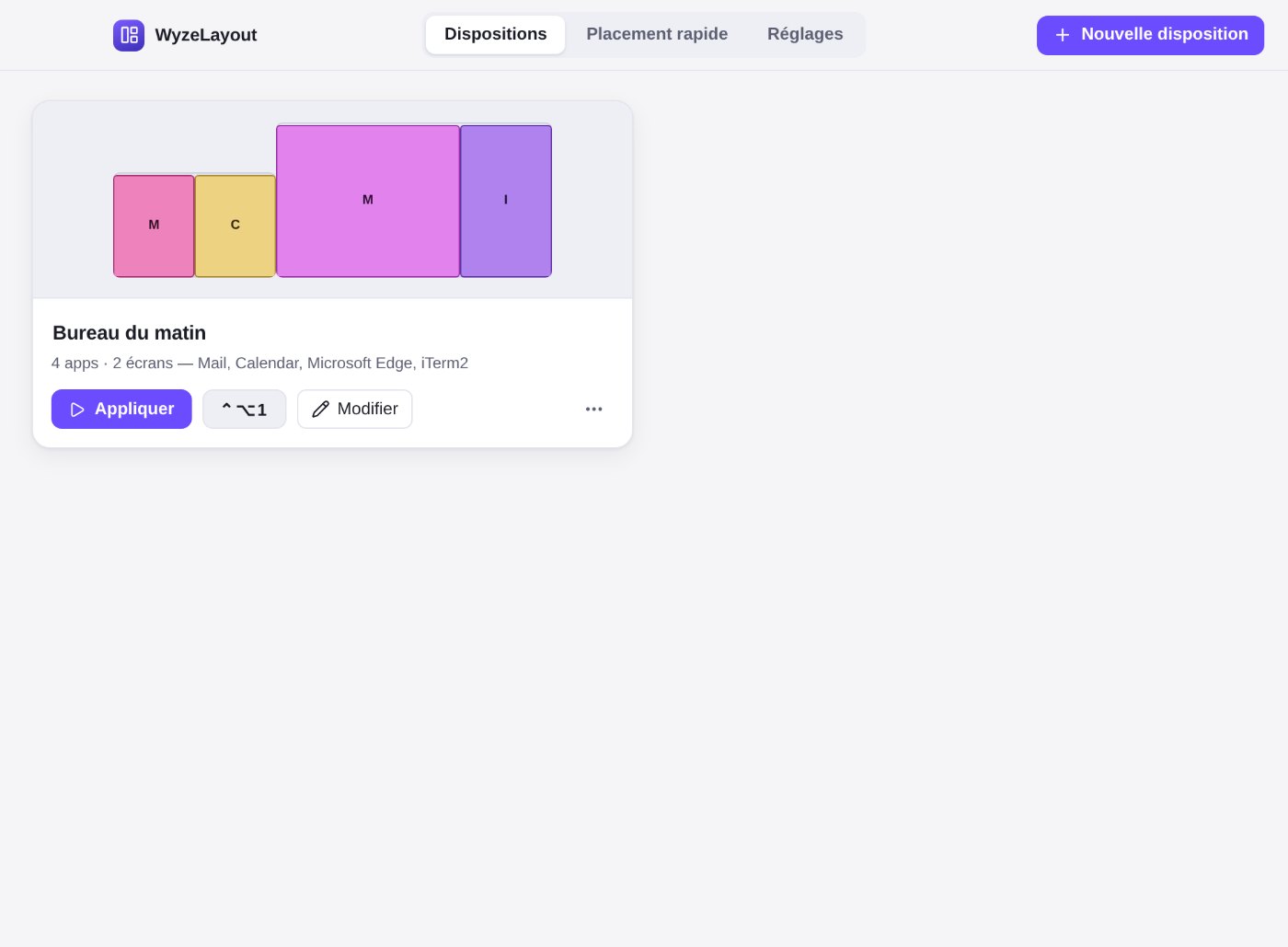
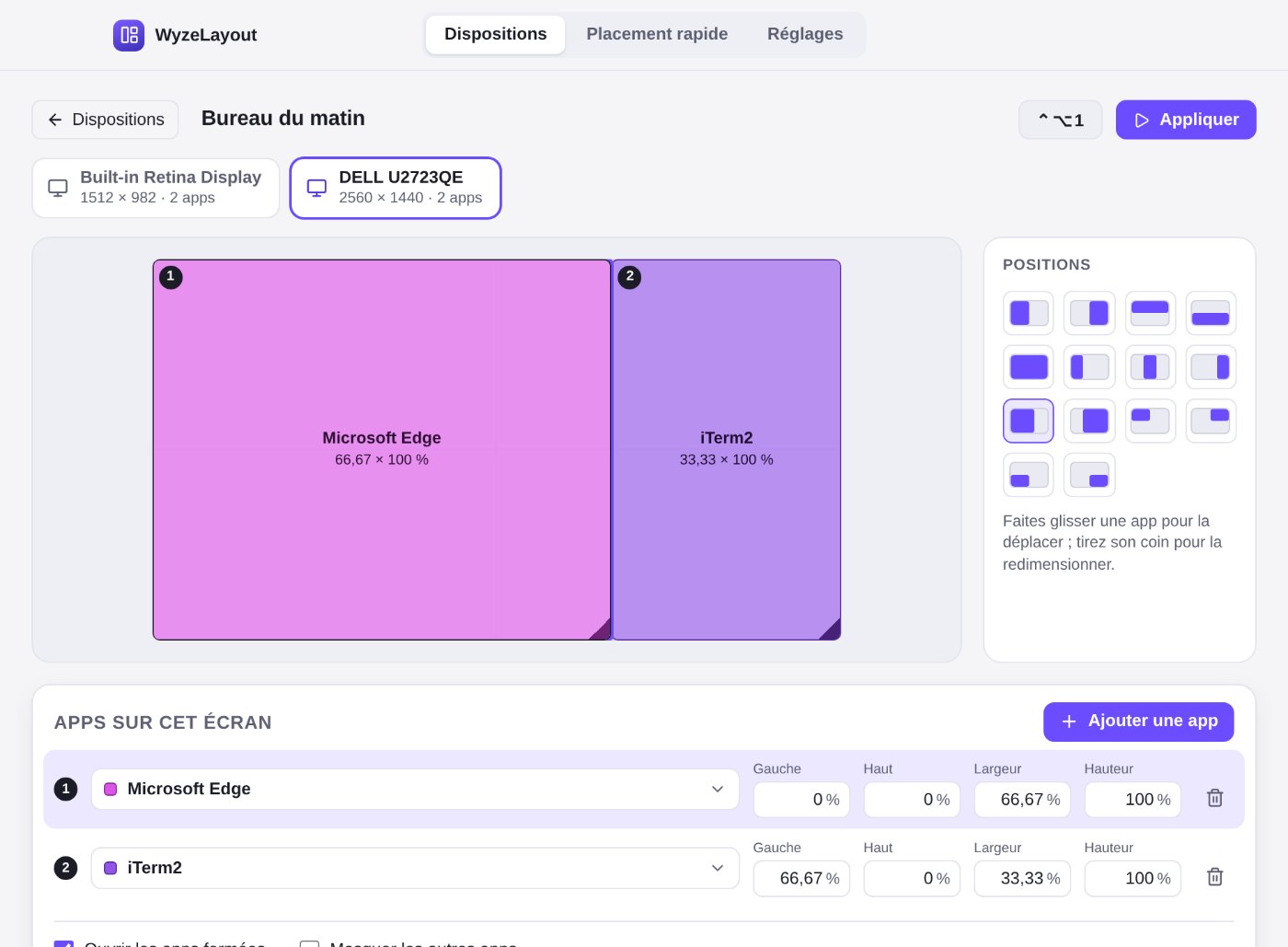
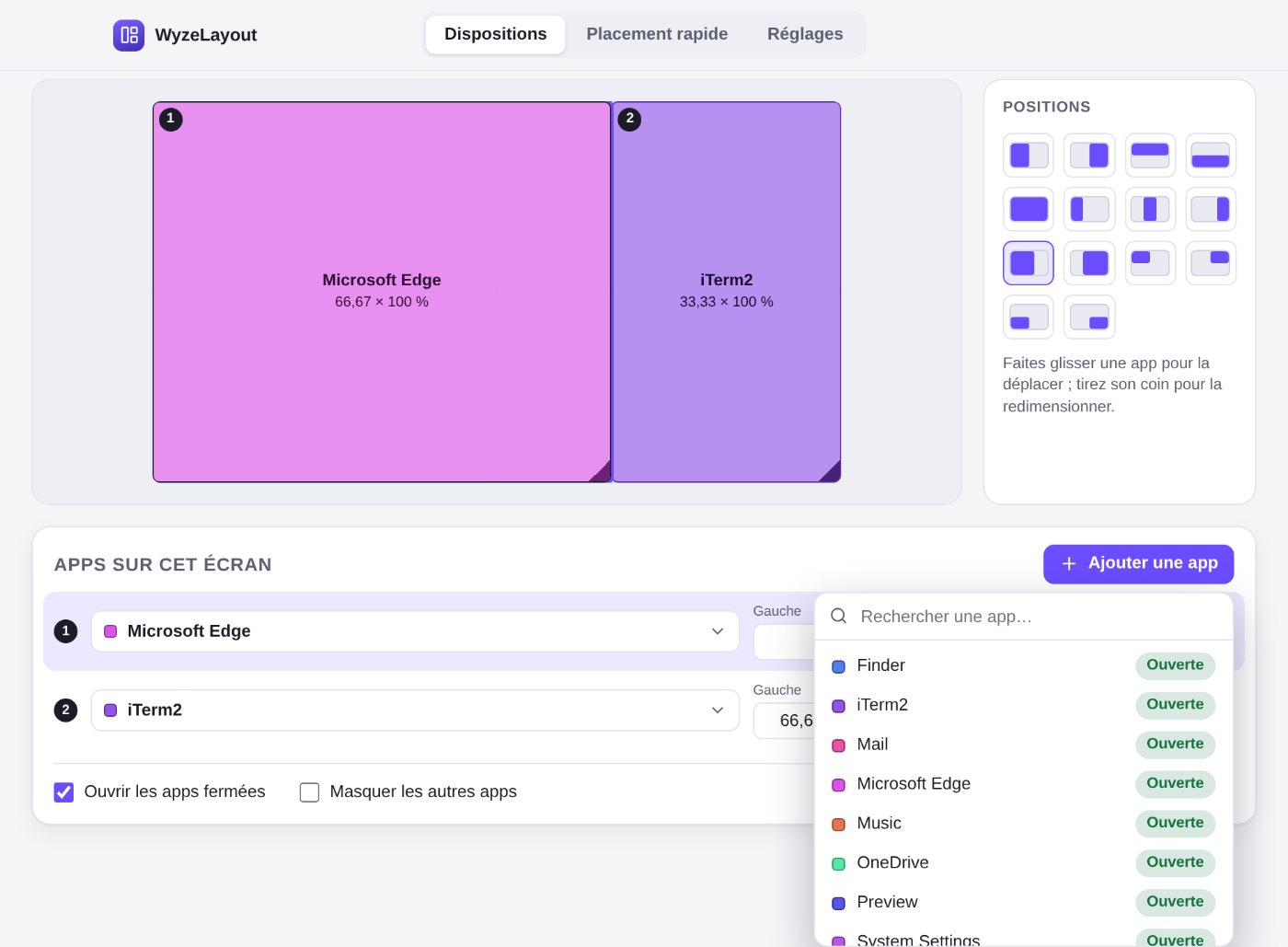
WyzeLayout puts your windows where you want them. For each screen you have connected, choose which app goes there and how much of the screen it takes, in percent of the width and of the height. Give the layout a name and a shortcut, and one keystroke arranges everything.
Layouts live in a single file on your Mac. There is no account and no server. The app sits in your menu bar and only shows in the Dock while you are editing a layout.
What you get
- One layout, every screen — Each connected screen has its own tab. Choose the apps for that screen and where each one goes. If a screen is unplugged, its apps move to your main screen at the same percentages.
- Sizes in percent — Set the left, top, width and height of each app in percent of the usable area of the screen, which leaves out the menu bar and the Dock.
- Drag in the drawing — A drawing of the screen lets you drag an app and pull its corner to resize it. It snaps to halves, thirds and quarters.
- Ready-made positions — Fourteen buttons give halves, thirds, two thirds, corners and full screen in one click.
- Any open or installed app — The picker lists the apps that are running, then the ones installed on your Mac, with a search field.
- Only the window in front — Each place takes the front window of its app. Other windows of that app, hidden behind, stay where they are. The placed windows then come to the front.
- A shortcut per layout — Give each layout its own global shortcut and apply it from any app, or from the menu bar. Applying a layout takes about half a second.
- Quick placement — Shortcuts for halves, thirds, corners, full screen, centre and next screen, applied to the window you are using.
- Menu bar only — The app has no Dock icon unless its window is open, so your shortcuts never bounce an icon.
- Two languages — English and French, following your system language.
Perfect for
- People who use more than one screen and want the same arrangement every morning
- Anyone who switches between work, meetings and focus time and wants one keystroke for each
- Those who like Raycast-style window management but want to choose the apps and sizes themselves
- Mac users who prefer a small app that keeps its data in one local file
Frequently asked questions
What is WyzeLayout?
WyzeLayout is a window layout app for macOS. For each screen, you choose which apps go there and the size and position of each, in percent of the screen. You save the result as a layout with a shortcut. It is free for a limited time.
Which permissions does it need?
Two, both asked by macOS: Automation (to control System Events) and Accessibility (System Settings > Privacy & Security > Accessibility). Without them, macOS does not let any app move another app’s windows.
Where is my data stored?
In a single file named layouts.json in the app’s data folder on your Mac. There is no account and nothing is sent anywhere. The app only reads a small public file every 6 hours to see whether a newer version exists, without sending any data.
Which window does it move when an app has several?
The one in front. The other windows of that app are not touched. If the same app has two places in a layout, it takes its two front windows, in order.
What if an app in the layout is closed?
It is opened, then placed as soon as its window appears. You can turn this off for each layout.
Why is there no Dock icon?
WyzeLayout lives in the menu bar. The Dock icon only shows while its window is open for editing, so your shortcuts do not make an icon appear and bounce.
Does it work with several screens?
Yes. Each connected screen has its own tab in the editor. Positions are given in percent, so a layout adapts to screens of different sizes.
Which Macs does it run on?
Macs with Apple silicon (M1 and later). It is not available for Intel Macs.
How do I open the app the first time?
WyzeLayout is signed with a Developer ID and notarised by Apple. The first time, macOS asks you to confirm that you want to open an app downloaded from the internet: click Open. If you still see a warning, open System Settings > Privacy & Security and click Open Anyway.
More from Labwyze Apps
WyzePDFFree
The PDF editor for Mac that does it all: annotate, fix text, fill, sign and protect. Fully offline.

WyzeChessFree
Cinematic 3D chess: sculpted armies march, fight and fall on every capture. Play the computer or a friend.
WyzeTasksFree
Kanban boards for your Mac that work offline. Plan, drag, finish. No account, no cloud.
FrameDeckFree
Manage the art on all your Samsung The Frame TVs from your Mac. Upload, browse free museum art and rotate in a few clicks.
WyzePlanFree
Plan projects the way they really work: say what waits for what, and every date calculates itself.
WyzeSnapFree
Capture any part of your screen, mark it up and share it in seconds. Everything stays on your Mac.
WyzeScribeFree
Record your calls and meetings, both sides, and get an editable transcript made on your own Mac. No bot, no upload.

WyzeSketchFree
A hand-drawn whiteboard for diagrams and ideas. Sketch, save as a file, export to PNG, SVG or PDF. All on your Mac.
WyzeMotionFree
Record your screen and let the zooms write themselves. The camera follows your cursor, so your tutorials and demos look polished with no editing.
WyzePhotoFree
Edit photos with layers, masks and adjustments you can change at any time. Opens PSD and camera RAW files. Everything stays on your Mac.
WyzeBlocFree
A calm falling-blocks game for one player. Slow pace, soft colours and music. Breathe, place, enjoy.
WyzeClearFree
Remove the background from any photo in seconds. The AI runs on your Mac, so your pictures are never uploaded.
WyzeSolidFree
Open, measure and edit 3D CAD files on your Mac. STEP, IGES, BREP and STL, with nothing sent online.
WyzeShelfFree
A temporary shelf for drag and drop. Shake your pointer, drop files, text and links, then drag them all out in one gesture.
WyzeFocusFree
A task manager designed for ADHD minds. Plan your day, pick what fits, and get unstuck, with no streaks and no points. Synced through your iCloud, on Mac and on iPhone and iPad in Safari.
WyzeMindFree
A studio for your mind. Every idea becomes an object, and everything connects, with backlinks, a graph, iCloud sync and an optional AI assistant that can also read your images. On Mac, and on iPhone and iPad in Safari.