

WyzeMotion
Record your screen and let the zooms write themselves. The camera follows your cursor, so your tutorials and demos look polished with no editing.
FREE No account, no subscription. This app is completely free.
Updated October 2026 · v1.0.0
Your download starts right away. Mac with Apple silicon · 112 MB
Demo & screenshots
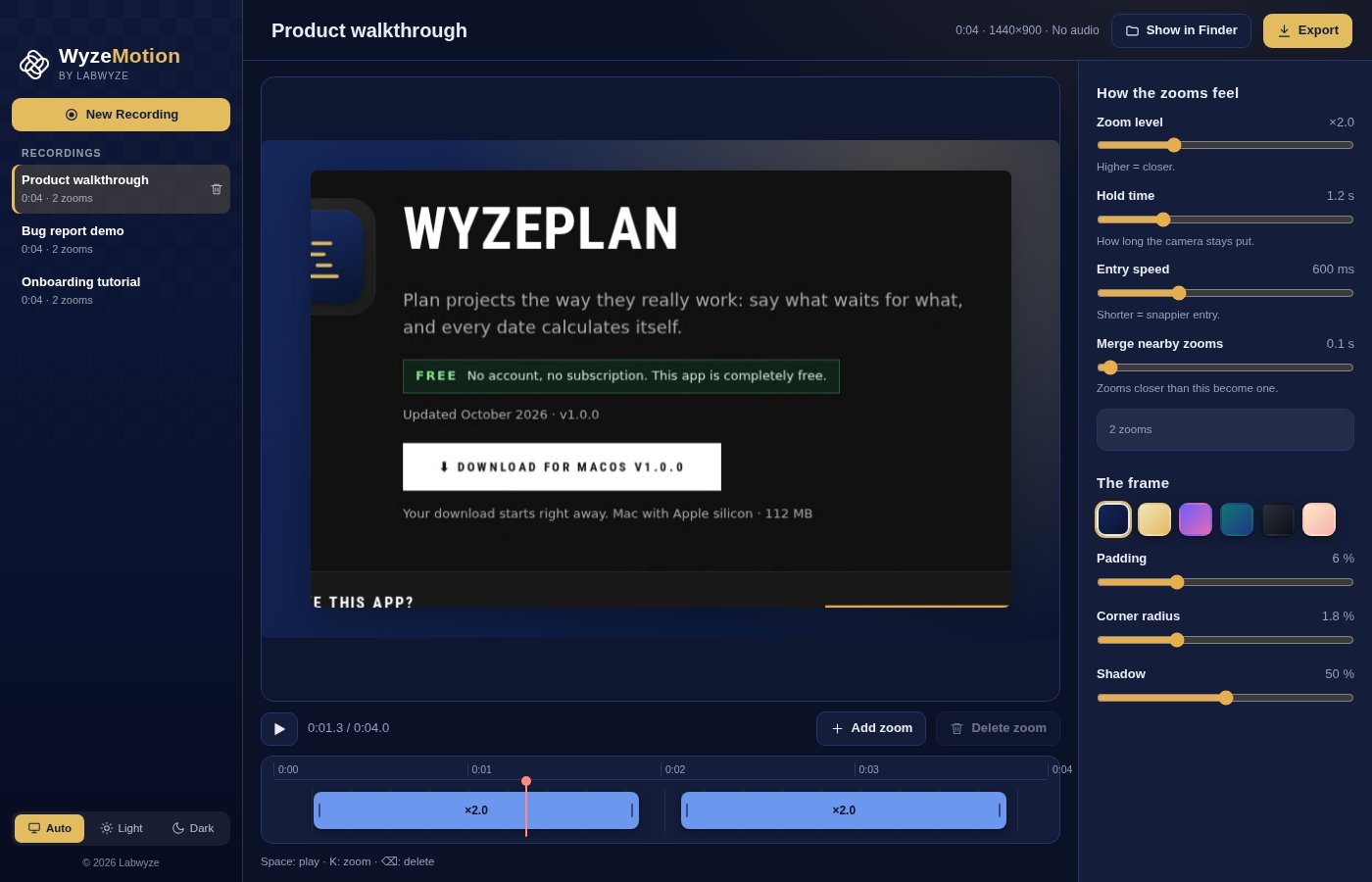
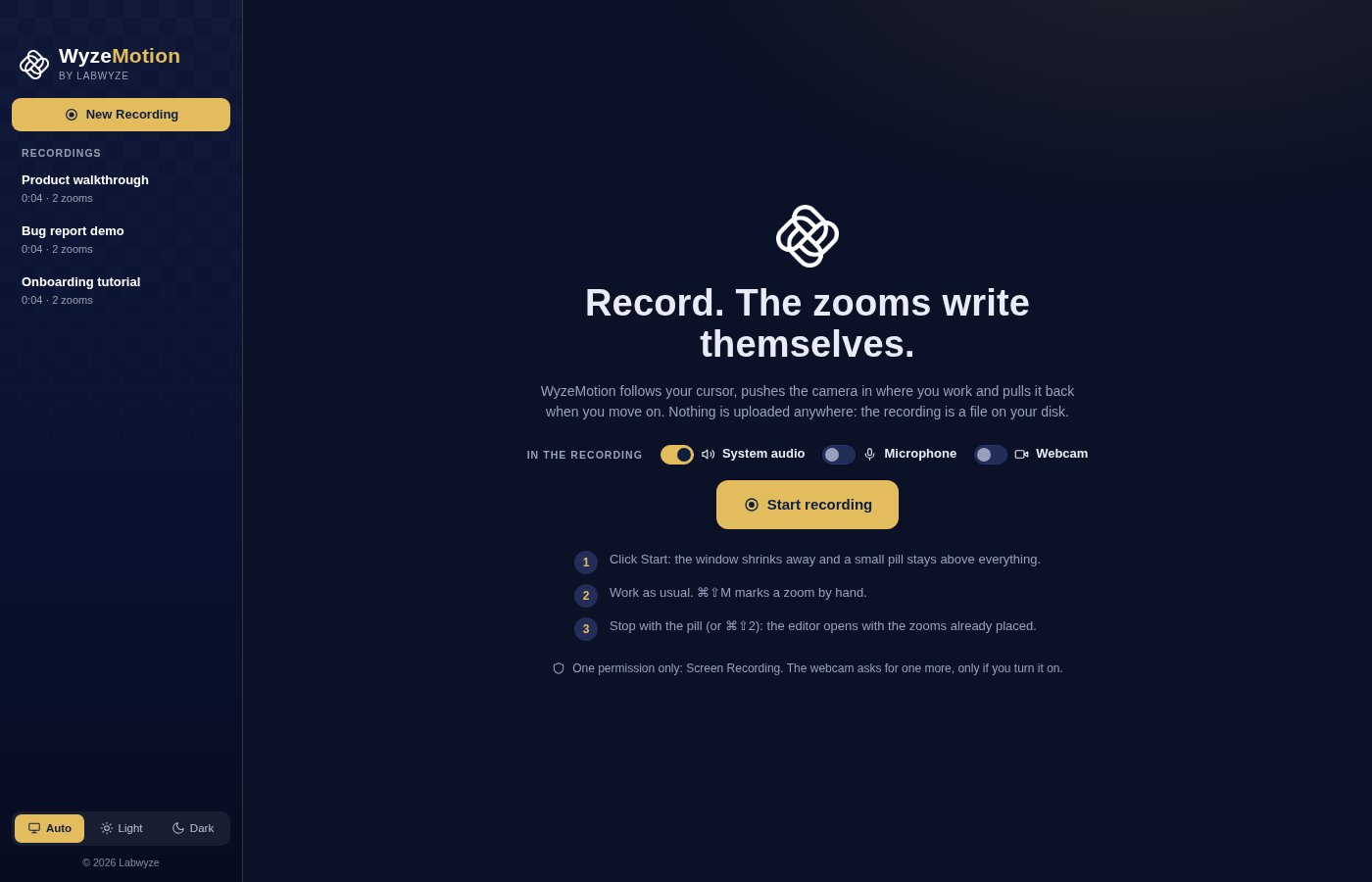
WyzeMotion is a screen recorder that edits itself. Record what you do on screen and WyzeMotion tracks your cursor: when you stop to work on something, the camera moves in on it, and when you move on, it pulls back. You open the editor with the zooms already placed, tune how they feel, pick a backdrop, and export a video.
Everything stays on your Mac. The recording is a file on your disk and nothing is uploaded. The screenshots show an example recording made for this page, using a capture of this website.
What you get
- Automatic zooms that follow your cursor — WyzeMotion detects when you pause on something and zooms in on that spot, then pulls back when you move on. A shaky hand is ignored, and zooms that are close together merge into one smooth move.
- Smooth camera, no jumps — The camera eases in and out instead of cutting, and it stays put while your cursor moves within the centre of the view, so the picture does not wobble.
- Mark a zoom by hand — Press ⌘⇧M while recording to mark a moment yourself, or add and remove zooms afterwards in the editor.
- Control how the zooms feel — Set the zoom level, how long the camera holds, how fast it moves in and how aggressively nearby zooms merge. Changes show in the preview straight away, and you can regenerate the automatic zooms while keeping the ones you placed.
- A polished frame — Put the recording on a coloured backdrop (Labwyze, Gold, Aurora, Ocean, Graphite or Dawn) with adjustable margin, rounded corners and shadow.
- Webcam bubble — Add your webcam in a circle, square, rounded square, wide or portrait shape. Choose its size, border, shadow and mirroring, and drag it to any of six positions right on the preview.
- Records the screen, with sound — Capture your screen asking for 60 frames per second (the real rate depends on your Mac), optionally with your microphone and your Mac's system audio.
- A small pill that gets out of the way — While recording, the window shrinks to a small floating pill so it does not get in your shot, and it is not captured in the video. Stop from the pill or with ⌘⇧2.
- Export a finished video — Export an MP4 when your Mac supports it, or WebM otherwise. The export plays the video back and records it, so it takes about as long as the video itself; keep the app open.
- Your recordings, on your disk — Recordings live in a library on your Mac, one folder each. Rename them, show them in the Finder or delete them. Light, dark or automatic appearance, in English and French.
Perfect for
- Product teams recording demos and walkthroughs that need to look clear
- Support and training teams making how-to videos
- Developers and designers showing a bug or a new feature
- Creators who want a polished tutorial without learning video editing
Frequently asked questions
What is WyzeMotion?
WyzeMotion is a macOS screen recorder that adds zooms automatically. It follows your cursor while you record, places the zooms for you, and lets you adjust them and export a finished video.
Is WyzeMotion really free?
Yes. WyzeMotion is free for a limited time. Download it during that period and it is yours to keep, with no account and no subscription.
Which permissions does it need?
One: Screen Recording. Turn WyzeMotion on in System Settings > Privacy & Security > Screen Recording, then relaunch the app. The microphone and the webcam each ask for their own permission, only if you switch them on.
How does it decide where to zoom?
It records your cursor position while you work. When the cursor stops after moving, that counts as a moment of attention and the camera zooms there. A small tremor does not count. Where it guesses wrong, you can move, remove or add zooms by hand.
Does it record the cursor inside the video?
WyzeMotion uses the cursor position to place the zooms. Whether the pointer itself appears in the picture depends on how macOS captures your screen, so do a short test recording to check.
Does it upload my recordings?
No. Recordings are saved as files on your Mac, and nothing is sent anywhere.
Can I record just one window or part of the screen?
No. WyzeMotion records a whole screen. Zooming in on the part that matters is what the editor is for.
How long does an export take?
About as long as the video. The export plays the video back and records the result, so a one-minute video takes about a minute. Keep the app open while it runs.
Which Macs are supported?
This build is for Macs with Apple silicon (M1 and later). Intel Macs are not supported.
macOS says the app cannot be opened. What do I do?
The app is not yet notarised by Apple, so macOS may block the first launch. Open System Settings > Privacy & Security, scroll to the message about the app and click Open Anyway. You only need to do this once.
More from Labwyze Apps

WyzePDFFree
The PDF editor for Mac that does it all: annotate, fix text, fill, sign and protect. Fully offline.

WyzeChessFree
Cinematic 3D chess: sculpted armies march, fight and fall on every capture. Play the computer or a friend.
WyzeTasksFree
Kanban boards for your Mac that work offline. Plan, drag, finish. No account, no cloud.
FrameDeckFree
Manage the art on all your Samsung The Frame TVs from your Mac. Upload, browse free museum art and rotate in a few clicks.

WyzePlanFree
Plan projects the way they really work: say what waits for what, and every date calculates itself.
WyzeSnapFree
Capture any part of your screen, mark it up and share it in seconds. Everything stays on your Mac.
WyzeScribeFree
Record your calls and meetings, both sides, and get an editable transcript made on your own Mac. No bot, no upload.

WyzeSketchFree
A hand-drawn whiteboard for diagrams and ideas. Sketch, save as a file, export to PNG, SVG or PDF. All on your Mac.